

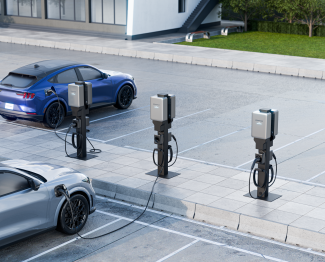
This guide explains how to integrate your Enphase IQ EV Charger with Optimile using the Mobiflow platform. It is designed for both installers and owners to ensure a seamless setup and activation process.
Once integration is enabled, Optimile will be able to:
- Authenticate charging sessions
- Add/Edit RFID cards
- Monitor data for all charging sessions
- View historic consumption data
Owners can still use Enphase App to monitor and control their IQ EV Chargers including:
- Start/Stop EV charging
- Set/Update all charging modes
- Monitor real time and historical energy consumption
- Monitor data for all charging sessions
- Generate charging reports
- Manage charger settings
Integration steps
Step 1: Install and commission the IQ EV Charger
- Use the Enphase Installer App to install and commission the charger. Refer to the quick installation guide for the steps to install the charger
- If the owner plans to commission the charger using the Enphase App after installation, refer them to the homeowner commissioning guide.
Step 2: Customise charger settings in the Enphase App
Once the charger is commissioned, owners can configure the charger via the Enphase App.
- For standalone IQ EV Charger without Enphase solar or battery:Use the standalone app setup guide.
- For systems with Enphase solar and/or battery:
Use the integrated app setup guide.
Step 3: Enable Partner Integration with Optimile via Mobiflow platform
To initiate the integration with Mobiflow platform
- Open the Enphase App
- Go to: Menu → Settings → IQ EV Charger → Partner Integration
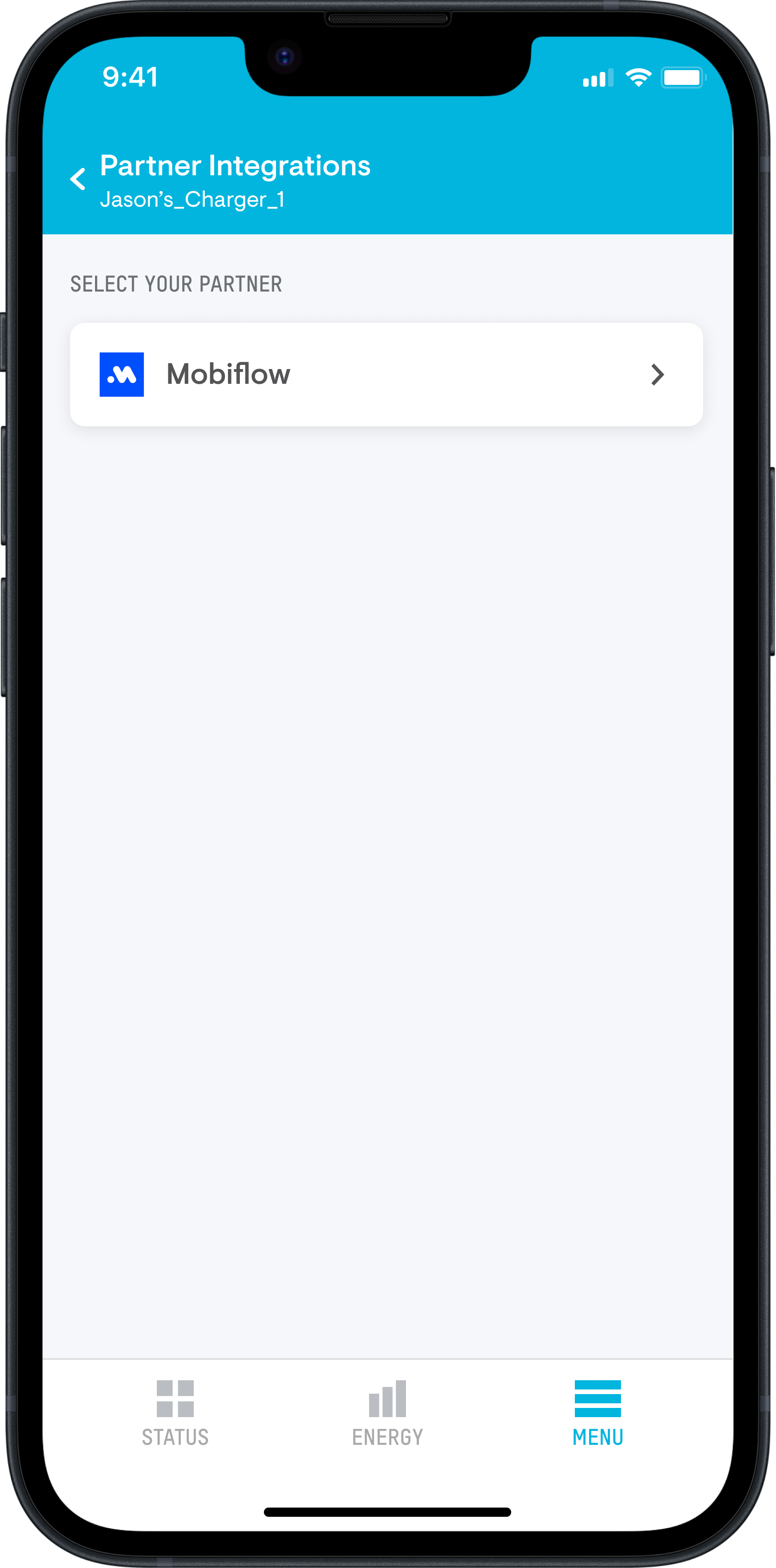
- Select Mobiflow as your partner
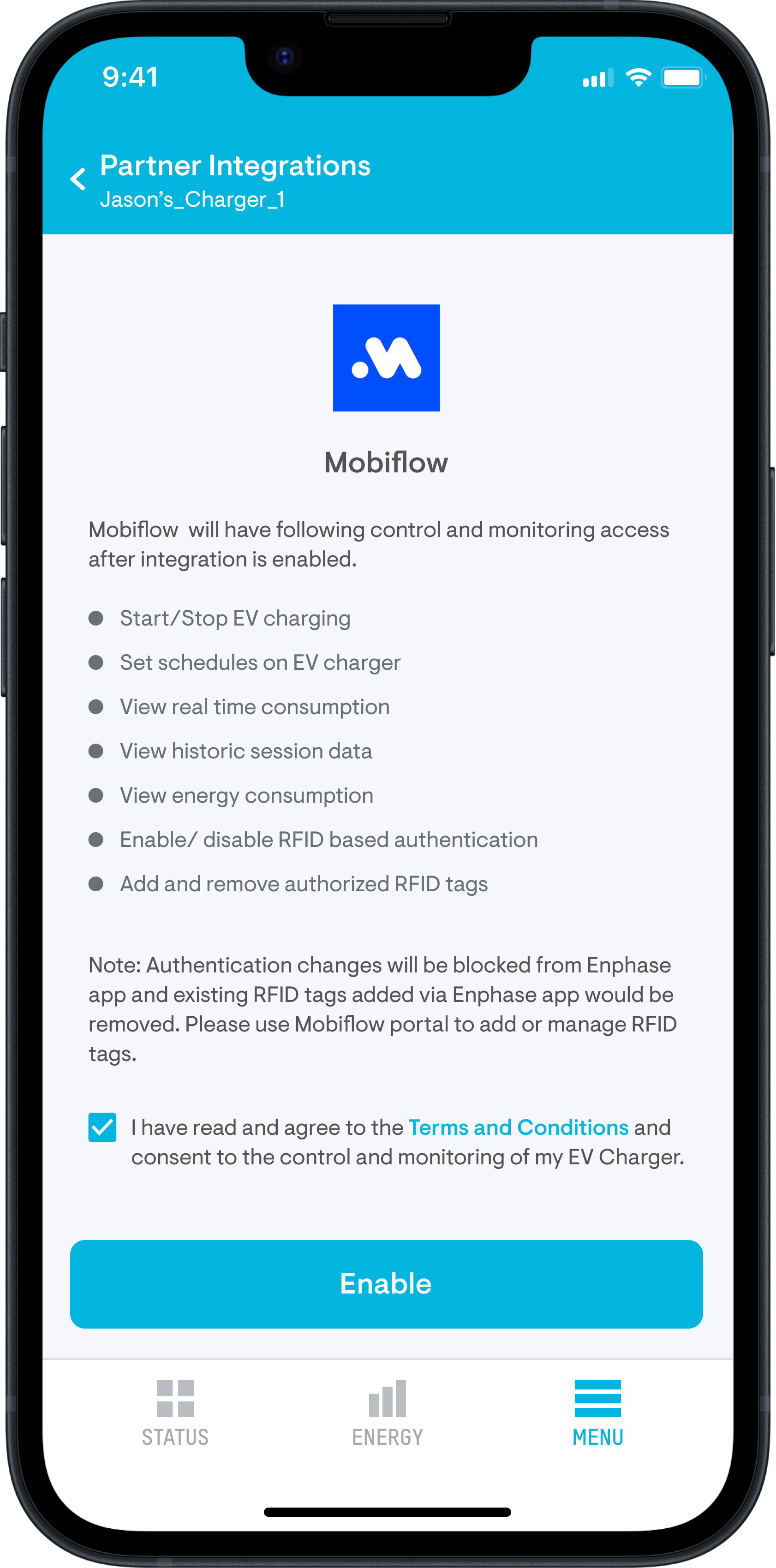
- Review the access details and grant consent to share control and system data
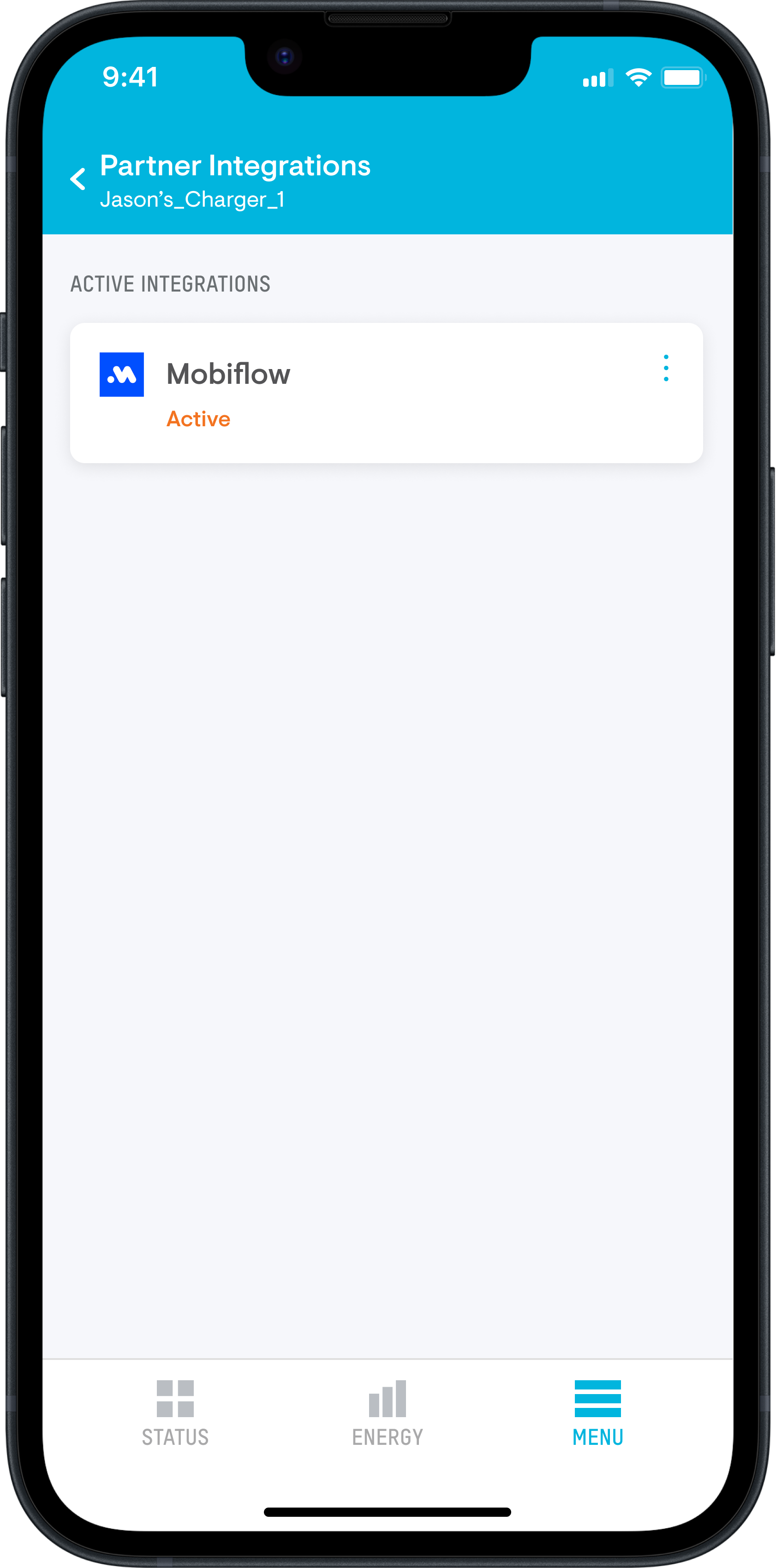
- Once enabled, a connection request is automatically sent to the Mobiflow platform
Step 4: Installer – Activate the charger on Mobiflow platform
- Log in or sign up using your installer account
- Search for the IQ EV Charger using the serial number as the charger ID
- Test the OCPP connection and set up the charger.
- Complete the charger configuration and send invite to the owner.
Step 5: Owner – Register the charger on Mobiflow by Optimile
- Ensure your installer has completed Step 4. If not, contact them and ask to complete the set up
- Using the invite received in your email, login to the Mobiflow portal and search for the charger using the serial number as the charger ID.
- Follow the steps to complete the set up by entering the required details.
- Your charging station is now successfully registered and ready to use.
Your Enphase IQ EV Charger is now integrated with Mobiflow platform and fully operational. You can view completed sessions on Mobiflow platform used for billing.
How to manage Authentication once charger is connected.
- On each plug-in, you would need to authenticate the session by presenting a valid RFID card. Charging will not start unless the session is authenticated.
- Authentication settings will be blocked from Enphase App and cards already added on Enphase App will be removed. Use Mobiflow portal to add or manage RFID cards.
- Once integration is completed you would be able to use your company provided card by default for authenticating sessions.
- You can also add other RFID cards as whitelisted cards from Mobiflow portal and use them to authenticate the sessions. Although you would be reimbursed only for the sessions authenticated using company provided card.
