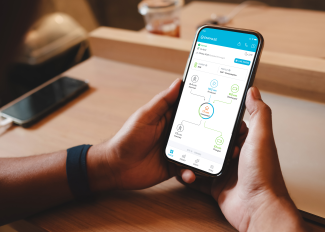
The Enphase App puts the power of your entire home energy system right in your hands. From tracking solar production and checking battery levels to understanding how much energy your home is using, it’s all just a tap away. With intuitive visuals and real-time insights, the app helps you stay informed, save more, and reduce your dependence on the grid. Whether you're trying to optimize efficiency, prepare for outages, or simply monitor your system's performance, you’ll have complete visibility and control right from your phone.
In this guide, you'll find a clear walkthrough of the app's most useful features, including what each one does, where to find it, and how it can help you get more value from your system.
Available now on the App Store and Google Play.
Watch: How to use the Enphase App
Want a quick look before you jump in? This short video walks you through the Enphase App, step by step so it’s easy for you to get started and feel comfortable using the app on your own.
What can you do with the Enphase App?
Check current system performance in the STATUS tab
The STATUS tab gives you a real-time window into how your energy system is functioning right now. It brings together everything that’s happening at this very moment—real-time solar production, live energy consumption, grid imports, and your current battery charge level if you have storage. Whether you're casually checking in or actively troubleshooting something, this tab is where you go to see your system in action.
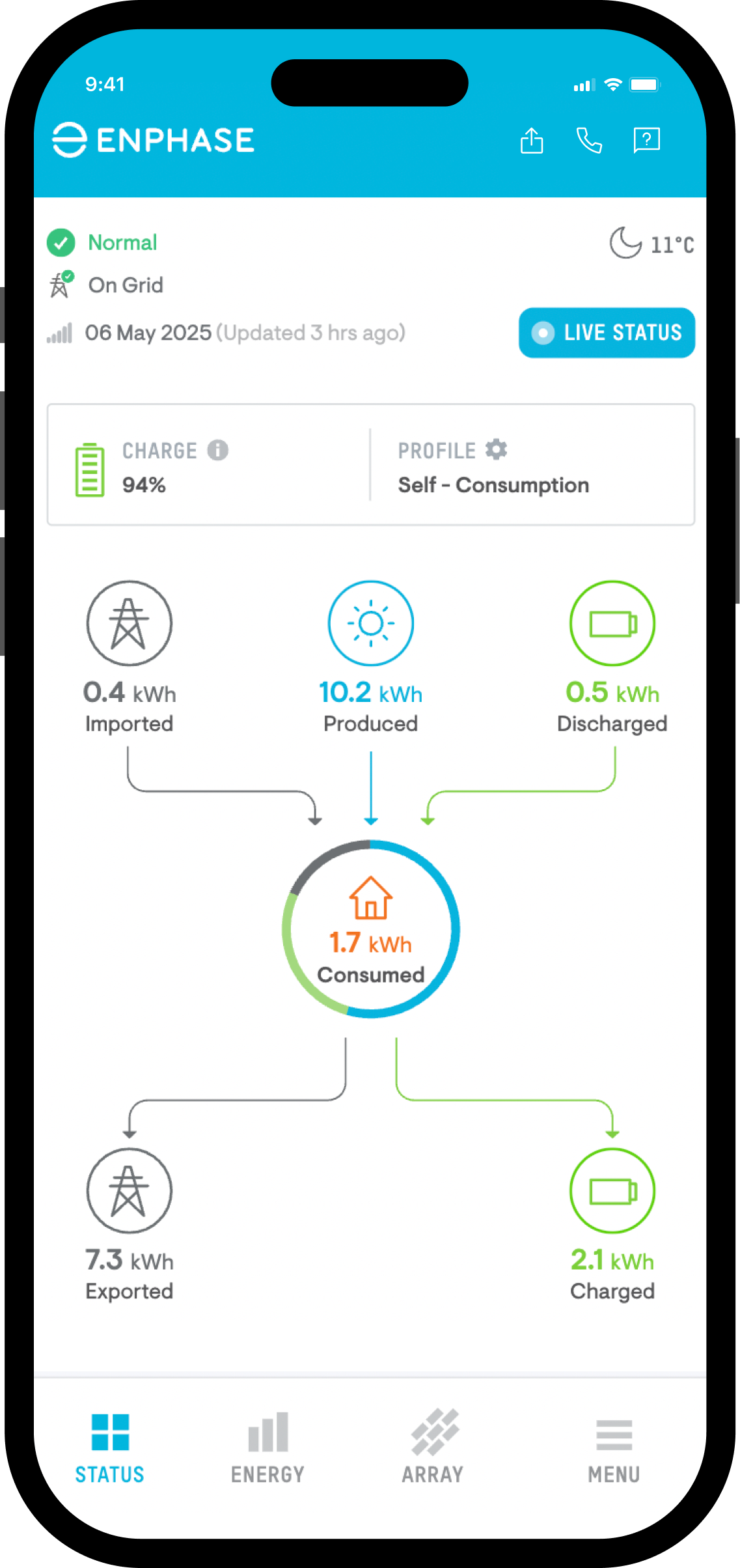
If you're looking for precision, LIVE STATUS is the standout feature here. Unlike the STATUS tab, it checks in directly with your system to deliver second-by-second updates of your power flow—letting you see exactly when your system switches between solar, battery, and grid. It’s especially helpful when you’re running large appliances or sudden spikes in consumption.
If your system includes a battery with backup, the app also reflects your system’s ability to become grid-agnostic during outages. Meaning it can safely disconnect and continue powering your home without relying on the utility grid.
Smart tip: Try checking LIVE STATUS at different times of the day, like during peak appliance use or on a cloudy afternoon, to see how your system adjusts in real-time.
Explore energy history and trends in the ENERGY tab
While STATUS tells you what’s happening right now, the ENERGY tab helps you understand what happened yesterday, last week, or even months ago. It’s where you go to see patterns—how much solar your system is generating over time, how your energy use changes, and how much you’re storing or sending back to the grid.
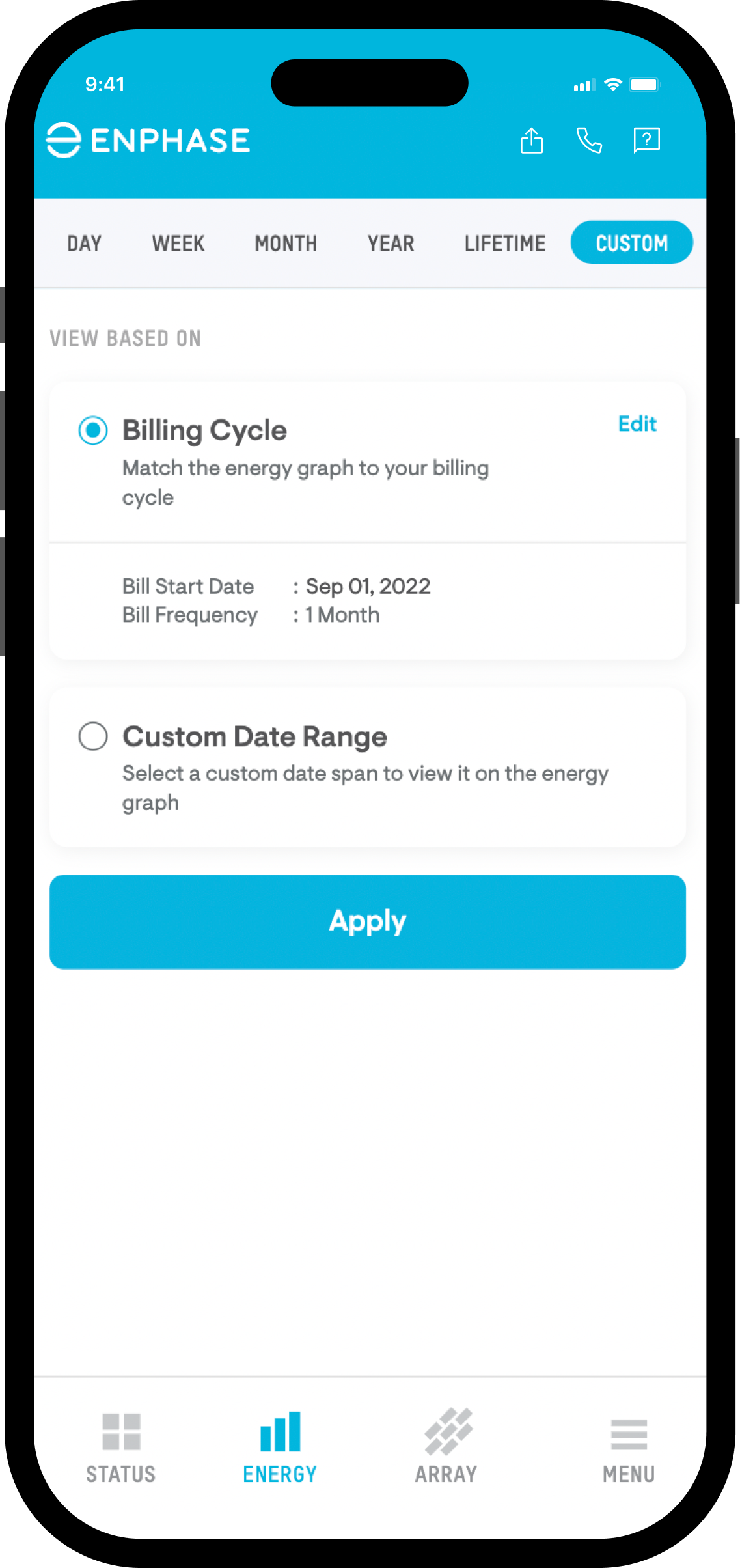
You can choose preset ranges like daily, weekly, or monthly, or set custom dates that match your electricity billing cycle. This makes it easy to compare your app data with your actual utility bill.
The graph shows:
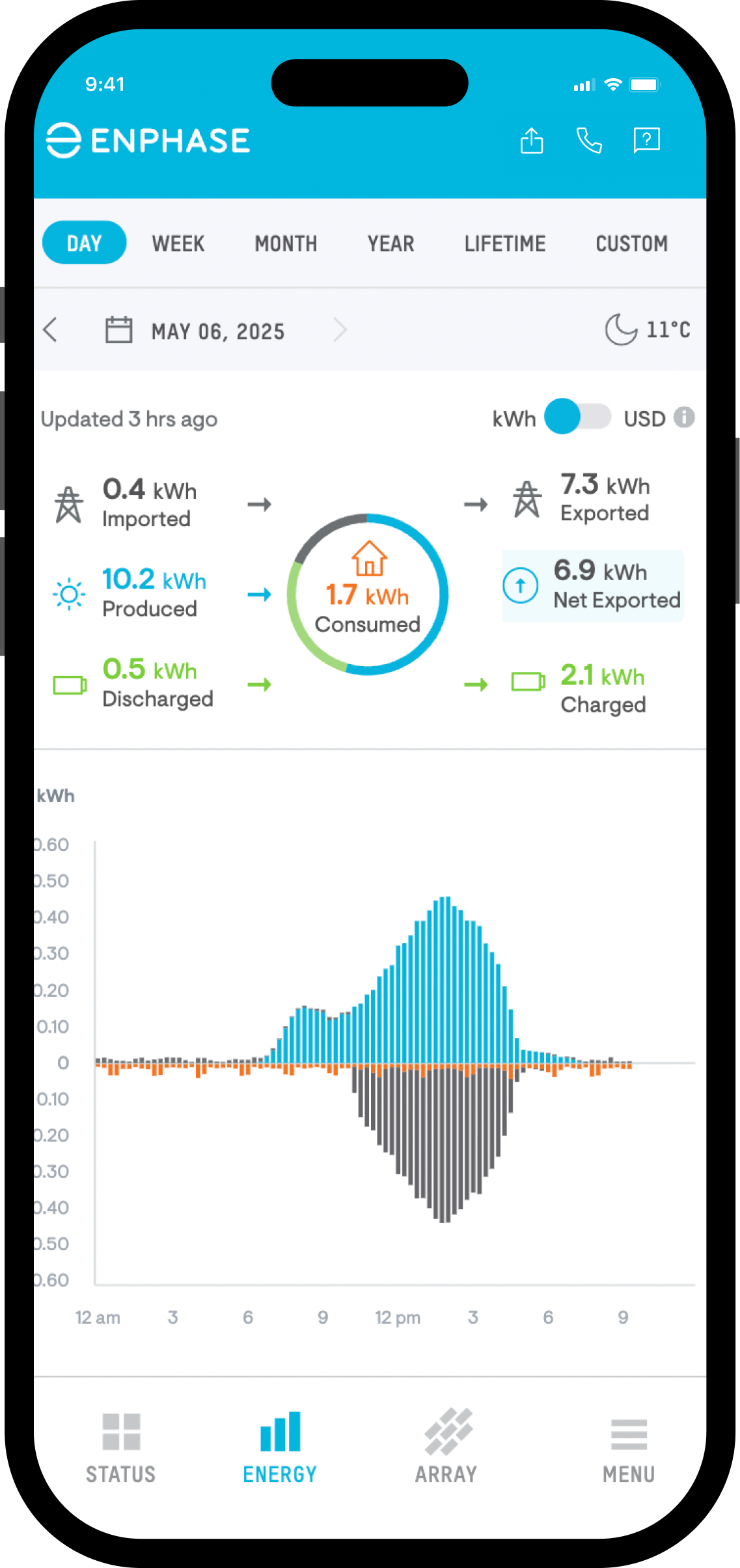
- Energy (in kWh) and power (in kW) over time
- A breakdown of solar production, consumption, battery charge/discharge, and grid imports/exports
- Optional widgets for financial and environmental impact
The ENERGY tab also offers deeper insights that go beyond just numbers:
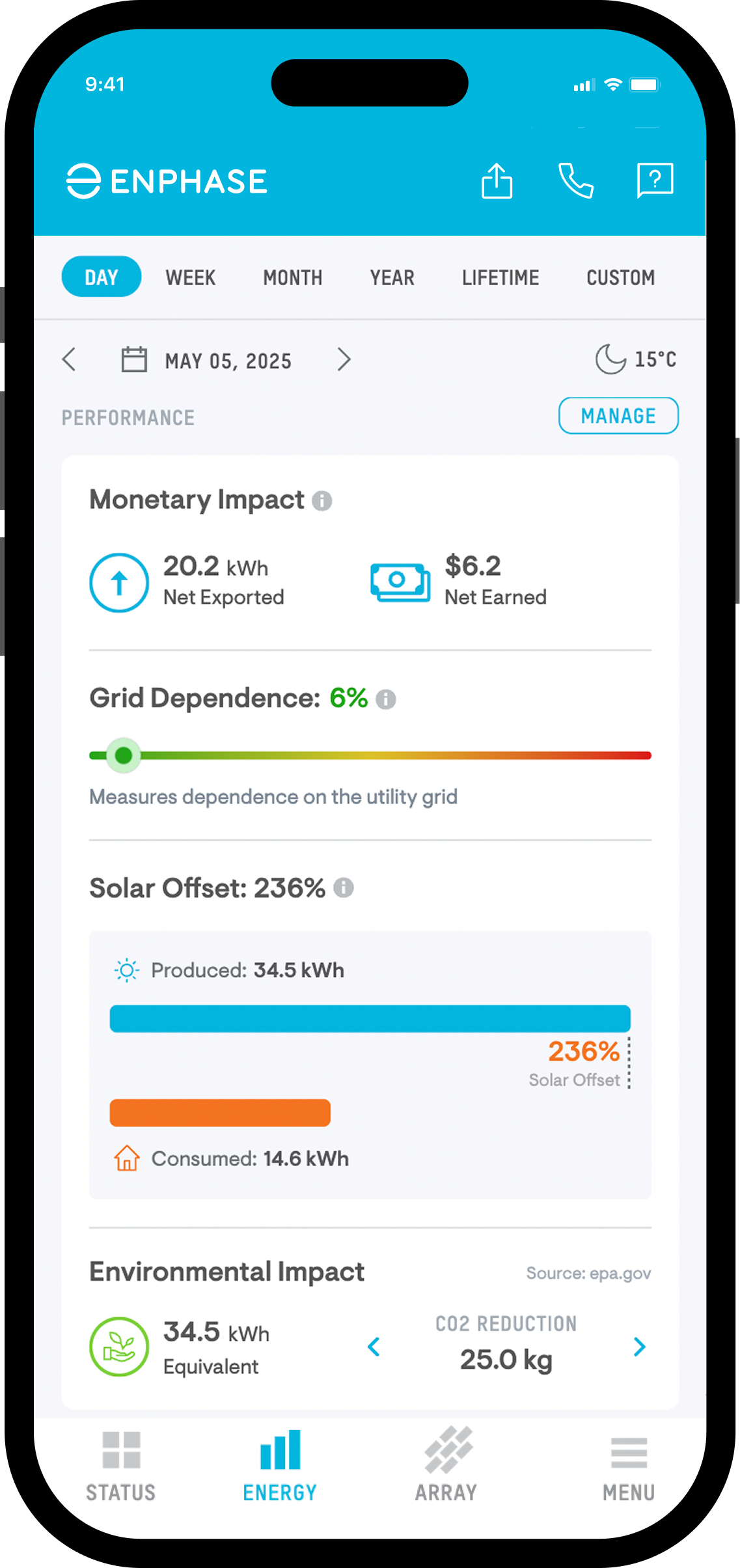
- Grid Dependence: Shows how much of your electricity came from the grid. Lower numbers = more self-reliance. Learn how to reduce dependency on the grid.
- Energy Independence: Tells you how much of your usage was covered by solar and battery.
- Solar Offset: Measures what percentage of your total energy needs were met by your solar system.
- Environmental Impact: Tracks your carbon savings — including CO₂ avoided and tree equivalents.
- Monetary Impact: Translates your energy savings into dollars, based on your electricity rate.
Smart tip: Go to Settings and enter your cost per kWh to make the Monetary Impact accurate. Turn on the Environmental Impact widget to see how your clean energy habits are adding up.
See how each panel is performing in the ARRAY tab
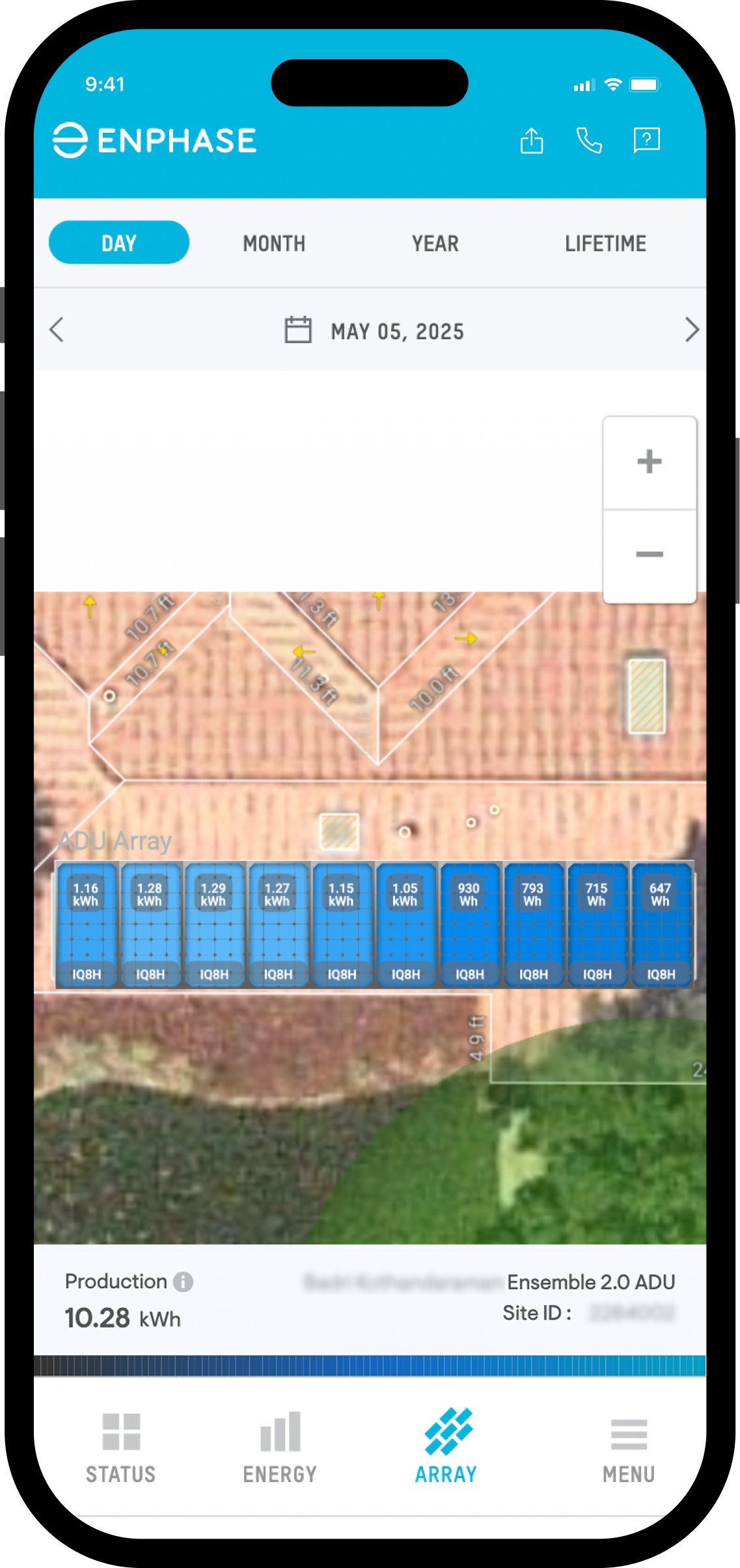
The ARRAY tab gives you a panel-by-panel view of your solar system. It shows a layout that matches your physical solar installation, so you can monitor how each panel is performing throughout the day.
This is especially helpful if:
- You suspect some panels may be shaded or dirty
- You're trying to diagnose why overall production seems low
Just tap any panel in the layout to see individual performance metrics. You’ll be able to spot variations in output that could indicate a shaded panel, soiling, or a hardware issue.
Smart tip: After a storm or during allergy season, check this tab to ensure all panels are operating as expected. If one’s lagging behind, it might need a quick inspection or cleaning.
Manage profiles, battery behavior, alerts, and more in the MENU tab
The MENU tab is where you customize how your system behaves—from energy priorities to battery protection and outage preparation. This is the part of the app that really lets you shape your energy strategy.
Set your energy profile
You can choose from three predefined profiles based on your goals:
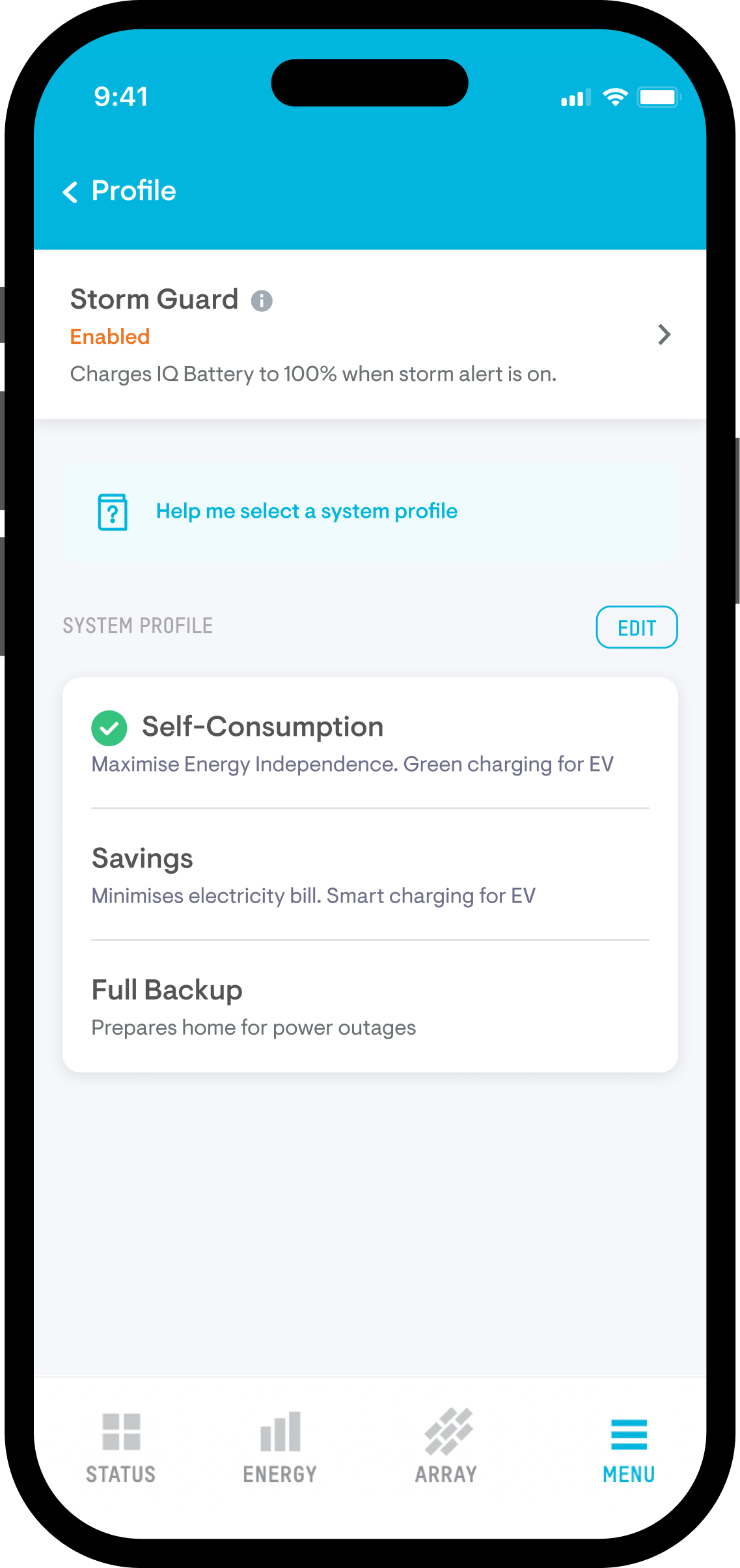
- Self-Consumption: Ideal if your goal is to use as much solar as possible. Your home runs on solar first, stores extra energy in the battery, and exports only when both are satisfied. This mode helps you become more energy-independent.
- Savings (also known as AI Optimization in California): Optimizes your usage to reduce utility bills. The system stores solar when electricity is cheaper and uses battery power when rates are high—perfect for time-of-use tariffs.
- Full Backup: Prioritizes backup power above all else. The system charges and maintains your battery at high levels, limiting exports and minimizing discharges so that energy is always available during outages.
Not sure which mode fits best? Learn more about each profile.
Enable Storm Guard
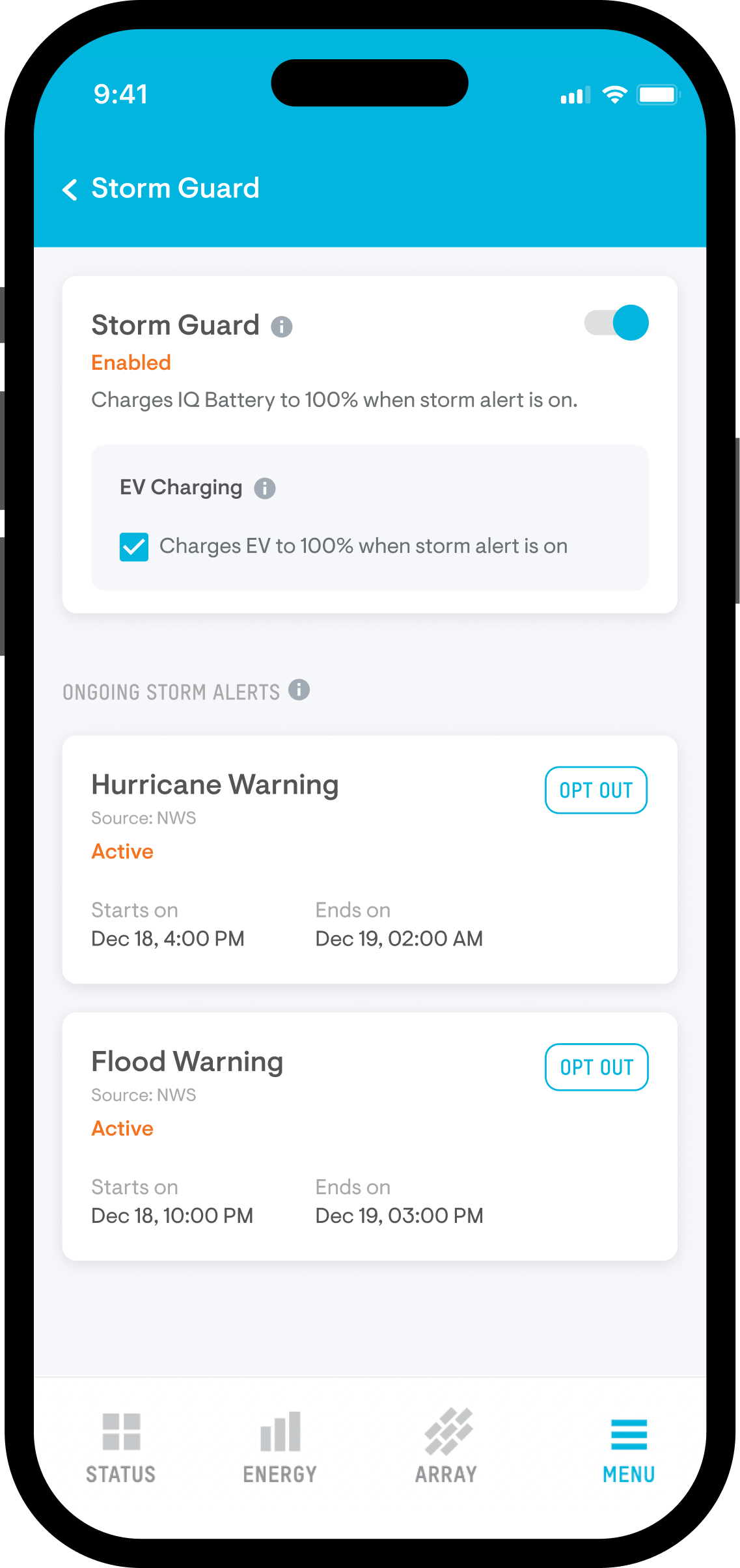
Storm Guard is a proactive feature that watches local weather alerts. If a storm is predicted in your area, your battery will automatically charge to 100%. This ensures you’re prepared without needing to do anything manually. Read more about how to use enable this feature.
It’s one of the easiest ways to make sure your home is ready for unexpected outages, especially during hurricane season or in areas with grid instability.
Adjust battery settings
You can fine-tune how your battery behaves by editing settings within your chosen profile. To get started, go to MENU > Settings > Profile, then tap Edit to configure each mode individually.
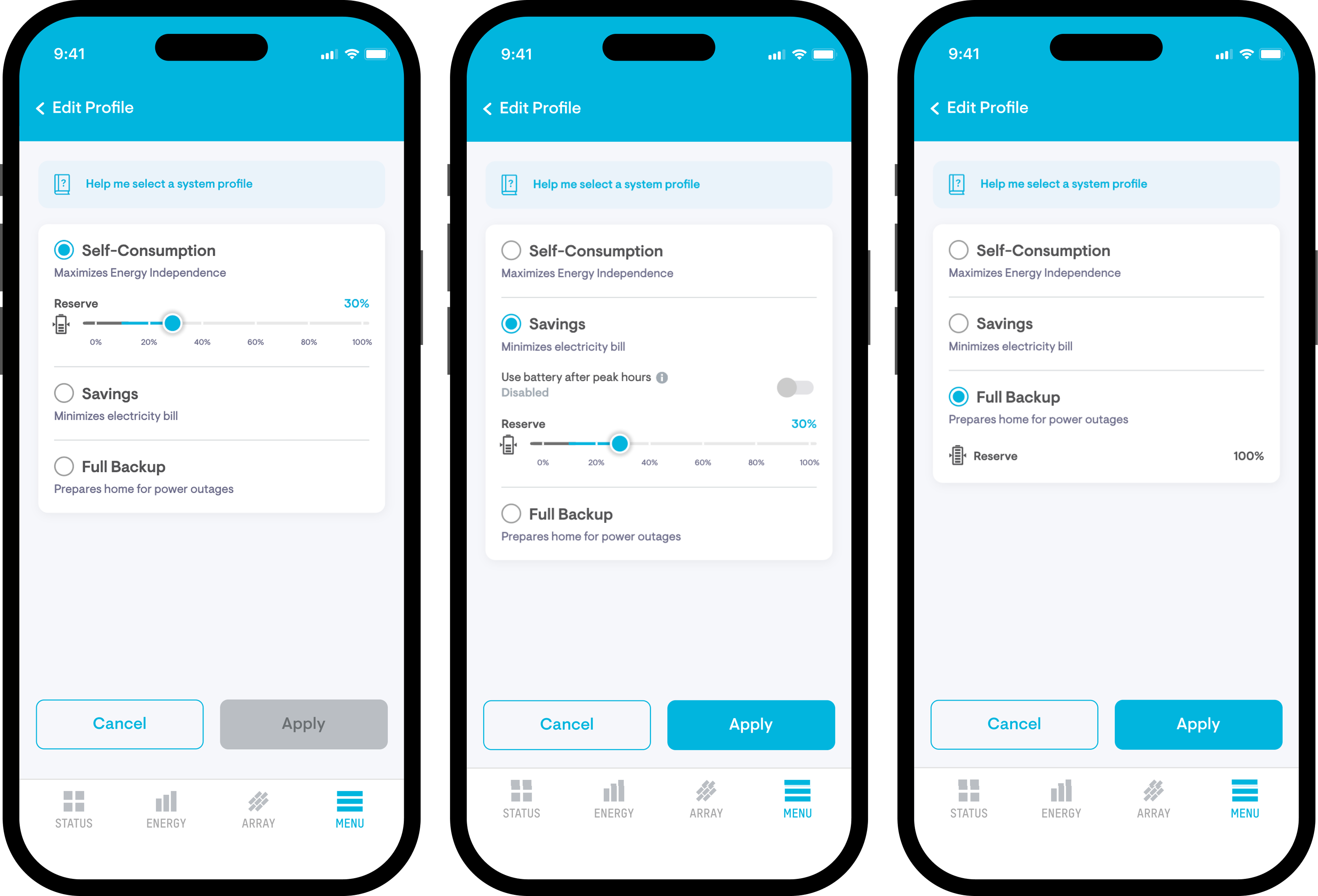
- Reserve level: Set how much of your battery you want to reserve for outages. A higher percentage means more backup energy if the grid goes down.
Note: The minimum reserve is 10% for backup systems and 5% for non-backup battery systems. Read here for step-by-step instructions. - Battery shutdown level: Define the threshold below which your battery stops discharging. This helps preserve power during long outages. Learn more about adjusting this setting.
These controls give you more flexibility — whether your goal is to lower your bills or stay prepared for emergencies.
Stay alert and in control
- Check Notices for system alerts or warnings
- Review Event history to see when outages occurred and how your system responded
- Tap Reports to email yourself detailed performance summaries
- Use Support for how-to guides, troubleshooting, or live chat
And if you ever want to simulate an outage or test your system's resilience, try Grid control. It temporarily disconnects your system from the grid so you can see how your home runs on backup.
Customize display preferences
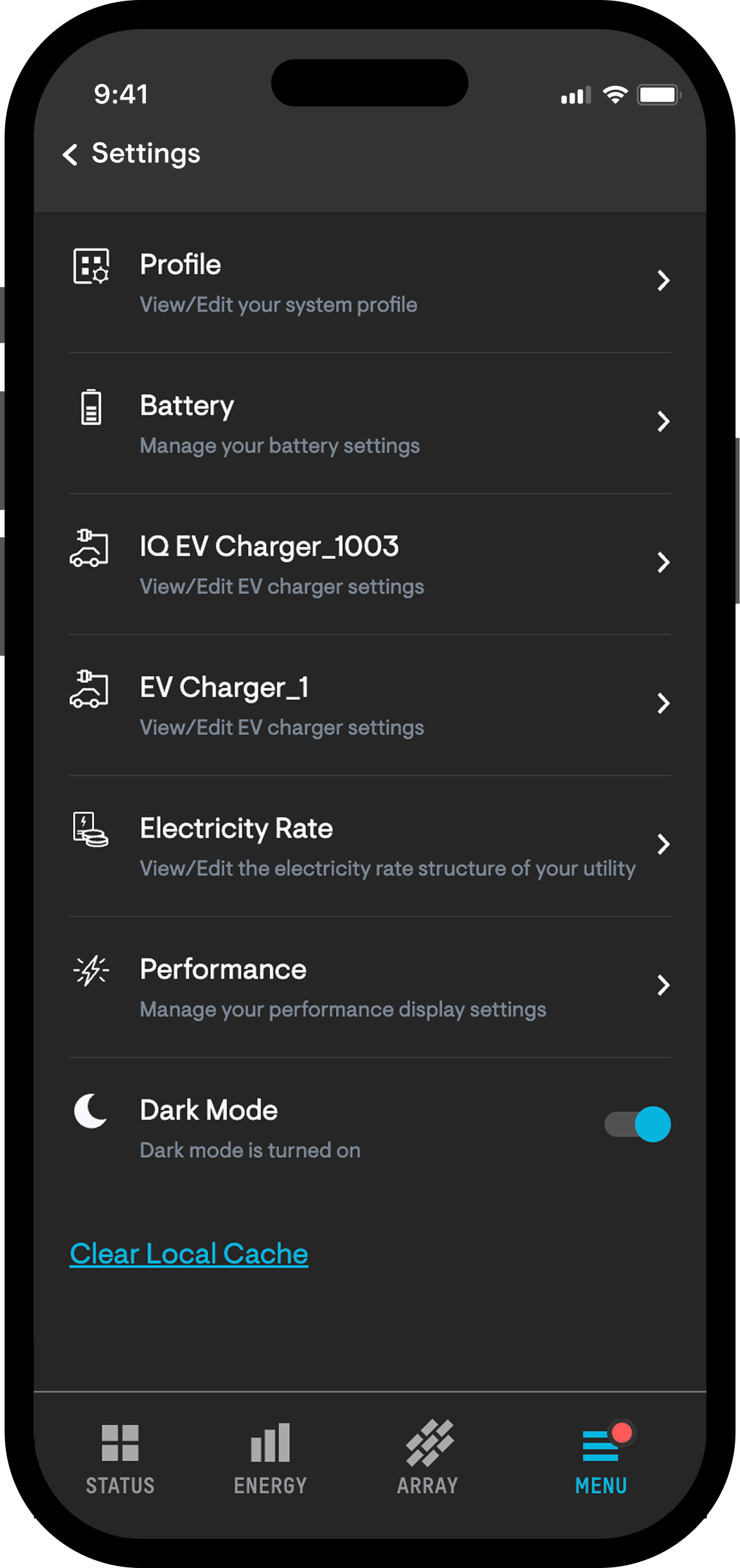
Prefer a dark background while using the app? You can enable Dark Mode by going to MENU > Settings, then toggling it on at the bottom of the screen. It’s easier on the eyes, especially at night.
Smart tip: Turn on push notifications under Account > Notifications so you never miss an alert.
Schedule EV charging and track usage in the MENU tab
If you have an Enphase EV Charger, the app gives you smart charging options that help you save money and use more solar.
You can:
- Set a charging schedule that avoids high-rate utility hours
- Sync charging with your solar production window (like mid-day) to smart charge your EV using solar power, saving you more on energy costs
- See how much of your EV’s charge came directly from solar
It’s a great way to reduce your carbon footprint and take full advantage of the energy your home is already producing. You can learn more about how to connect your EV charger to the Enphase App here.
Smart tip: Use app-based charging to prioritize solar first—not only is it cleaner, but it helps you lower electricity bills too.
Download the app and take charge
Download the Enphase App today from the App Store or Google Play, and take control of how you power your home—smarter, cleaner, and on your terms.
Looking for more help? Browse our video guides, dive into helpful articles, or reach out to support right inside the app.
Frequently asked questions about the Enphase App
Go to MENU > Account, then tap Change password. If you're logged out, use the Forgot password link on the login screen.
Yes. You’ll still be able to monitor your solar production and energy imports from the grid. Battery-specific features like charge level or Storm Guard will just be hidden.
Your installer will link any new Enphase system to your account during setup. You won’t be able to add it manually through the app.
To update your system’s Wi-Fi settings, follow the step-by-step instructions in this video guide. It walks you through the full process of connecting your system to a new network.
Only LIVE STATUS in the STATUS tab shows real-time data. All other energy data updates at intervals—every 5 to 15 minutes if your Gateway is connected via Wi-Fi or Ethernet, or every 6 hours if it’s on cellular.
Check your home internet connection first. Then verify that the IQ Gateway is powered on. If it still doesn’t connect, head to MENU > Support and tap Chat for quick help.
Yes. If you have an Enphase EV Charger, go to MENU > EV Charger to set schedules and see how much solar is being used to charge your vehicle.
If your system includes a Load Controller, you can view real-time appliance-level usage in LIVE STATUS. A detailed usage breakdown is not currently available in the ENERGY tab.
Yes. System alerts will appear under MENU > Notices, and you can enable push notifications by going to MENU > Account > Notifications.