

Commissioning
Commissioning

Get your system online with confidence. This section walks you through each step of the commissioning process using the Enphase Installer App—from site setup to verifying system performance. It includes best practices to avoid delays, step-by-step visuals, and tips to ensure everything runs smoothly.

Before commissioning any Enphase Energy System:
Download the Enphase Installer App from the Google Play Store and Apple App Store
Sign in using your Enphase Installer Portal credentials

If you need access:
Contact your company’s installer portal admin
If your company isn’t registered, create an account
If you’re a subcontractor, request the company to add you as a user
Preconfigure the IQ Gateway using activation page
To reduce time needed for on-site commissioning, you can prepare the system before going to the installation site:
- Connect the IQ Gateway to power and internet at your office or home
- Enter system details and upgrade the IQ Gateway software via the Enphase Installer Portal
Define and add devices to the system
To reduce time needed for on-site commissioning, you can prepare the system before going to the installation site:
After site details are entered in the app:
- Use the app to scan barcodes of all components and link them to the site
- Follow prompts carefully, error messages and best practices will help guide you
Screens may look different with updates, but the overall process stays the same.
Steps
- System device setup: Count and scan all components
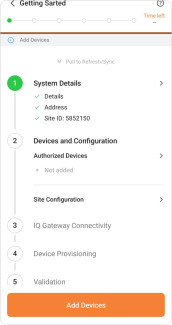
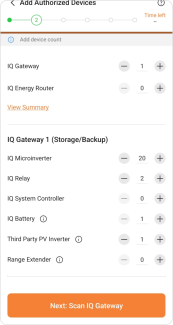
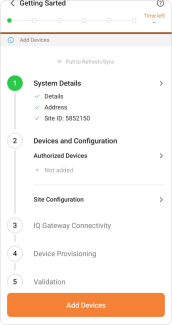
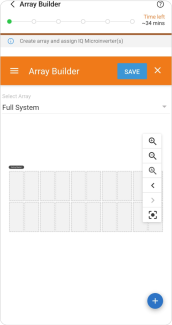
- Create the virtual array
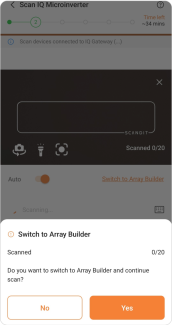
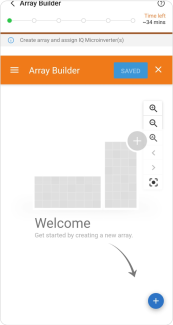
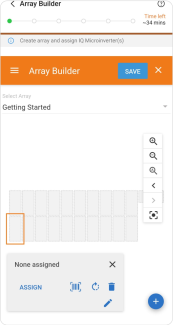
- Map and assign microinverter serial numbers
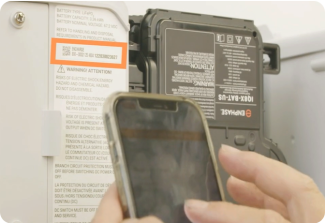
- Scan the QR code labelled ENCHARGE for IQ Battery systems
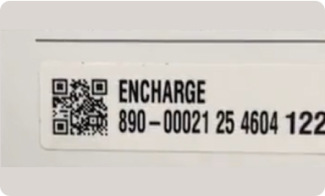
Connect to the Gateway to link and activate all devices
Steps for Activation
- Connect to the IQ Gateway in AP mode using the Enphase Installer App
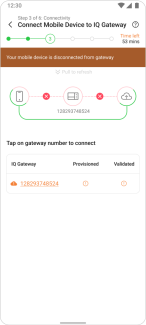
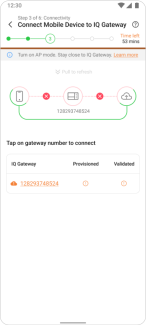
- Then connect the gateway to the internet (Wi-Fi, Ethernet, or Cellular)
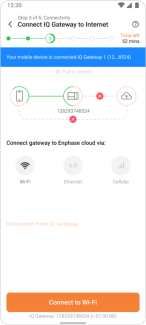
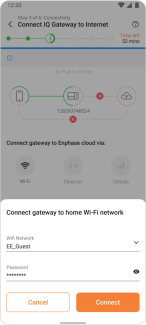
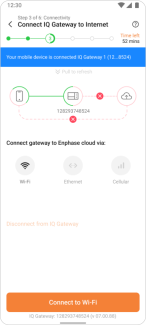
- Use a Wi-Fi repeater or Ethernet if the signal is weak to avoid dropped connections
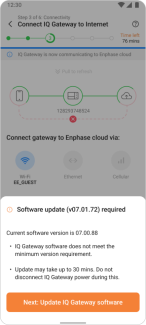
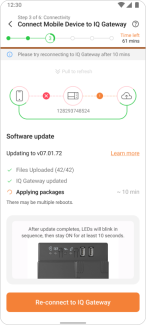
- If a software update is required, disconnect AP mode and stay connected to the internet until it completes—the system won’t work properly without it
Make sure you’re certified for the specific battery type you’re installing — each model requires its own certification. If you're not certified, the app won’t allow you to proceed.
Verify system operation
In this step, the Enphase Installer App checks that your Enphase Energy System was installed correctly and is operating as expected. Several validations are performed automatically, and here are two key ones to pay attention to:
Steps
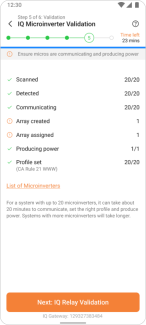
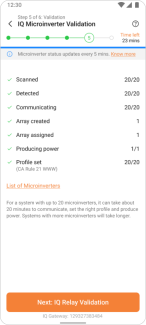
- Microinverter validation: Tap List of Microinverters in the app to confirm they’re online and receiving sufficient AC power
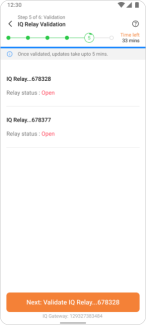
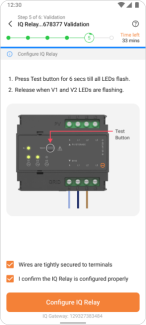
- Q-Relay validation: If any issue is detected with the Q-Relay, errors will be shown in-app and provide built-in troubleshooting steps
Set up metering with the wizard tool
For systems using CTs:
- Use the built-in Meter Wizard in the app to configure production and consumption metering
- The tool will run tests and highlight any misconfiguration
Best practices:
Don’t skip the Meter Wizard
If you're unsure, check our Installation Guide or contact support. Skipping or misconfiguring this step can lead to issues that can’t be fixed remotely and may require another on-site visit.
For three-phase systems
Use coloured labels to clearly mark each phase and match the CTs accordingly. This ensures consistency and avoids phase alignment errors.
Set the CT to Load with Solar
This means placing it on the grid side of the main load (where the house connects to the utility). This setup ensures the CT measures both imported and exported energy accurately.
If there’s a third-party PV system, it must be monitored. Use:
A production CT to capture 100% of its generation, or a reversed consumption CT to subtract its output from the total export reading, preventing negative values.
Wait for Permission to Operate (PTO)
At this stage, you should have created the system activation, completed the installation, verified everything is operational, and are now waiting for Permission to Operate (PTO).
Once commissioning is complete and you're awaiting PTO:
- Build the virtual array(s) in the Enphase Installer Portal if not already done
For storage systems, if you want to leave the system OFF:
- It is mandatory to turn OFF the DC switch of the battery first
- Optionally, you can also turn OFF the AC switch of the battery and the IQ Gateway
When turning the battery ON after PTO, always follow this sequence:
AC switch of the battery ON → 2. DC switch of the battery ON
(Never turn DC ON before AC.)
After 24 hours of operation post-PTO, the homeowner will will automatically receive an email with their Enphase App login credentials.
Best practices for faster commissioning
Follow these tips to avoid delays and ensure a smooth install:
Before going on site
Pre-create the system in the Activation Page
Save time by setting up the system activation ahead of your visit.
Verify installer certification
Ensure all installers on-site are trained and certified. The app will block progress if certification is missing for certain components (e.g., storage systems).
Update the Enphase Installer App
Download the latest version from the iOS and Android app store before your visit.


Enable permissions
Allow Bluetooth and Location permissions when prompted in the Installer App.
Download IQ Gateway software
After logging into the app, go to Menu & Settings > Envoy Software > Download to preload applicable software versions.
System access
If you're visiting a site with an existing Enphase system and you're not listed as the PV maintainer, make sure to request access from the homeowner before your visit. You can find step-by-step instructions in the Installer Portal (Enlighten Manager) here.
Remote software update (Retrofit Systems)
If the existing IQ Gateway doesn’t need replacement, update its software remotely via the Activation Page (the Gateway must be online via Wi-Fi or Ethernet).

Bring the array map
Always carry a detailed layout of the array and microinverter positions. It speeds up scanning and mapping on-site.
On site
Use a dedicated PV board
Create a separate PV board exclusively for the Enphase system to improve organization and serviceability.
Scan all devices in Step 2
Ensure all installers on-site are trained and certified. The app will block progress if certification is missing for certain components (e.g., storage systems).
Battery breakers setup for provisioning
The AC breaker must be ON, but the DC switch must be OFF before provisioning devices.
IQ System Controller (IQSC) – MOR Switch
The MOR switch must be OFF during commissioning. Leaving it ON may damage the device.
Correct CT placement
Ensure the production CT does not measure battery activity.
Label phases clearly in three-phase systems
Use the coloured labels in the CT’s box to mark each phase and match the CTs accordingly. This ensures consistency, prevents phase alignment errors, and simplifies troubleshooting later on.
Run a PLC noise test
Check for noise on the power line and install gapped ferrites if needed.
Generate system summary report
Use the Enphase Installer App to confirm system performance. Learn how to create a system summary report here.
Generate a grid profile report
Go to Enlighten Manager > Reports > Grid Profile Settings to generate and save the system’s grid report.
Ensure the battery DC switch remains OFF during the PTO wait period
To prevent battery depletion while waiting for permission to operate (PTO), make sure the DC switch remains OFF. Turning on the AC breaker or Gateway is optional at this stage.
Document the Meter Cabinet Before Leaving the Site
Before leaving, take a photo of the open meter cabinet and upload it either to your own administration system or directly to the activation page. If any issues arise later and you're asked about the installation, you'll be able to show how it was connected—without needing to return to the site.
